
Start here
- Browse a public canvas without signing in. Sign in before posting or replying.
- Choose your language from the language menu. Use a password, email code or an available Google sign-in option.
- Open an existing canvas, or create your own activity.
Good to know
Private canvases require an invitation or membership. A shared URL alone does not give private access. Never share your login codes or recovery codes.
Create and share
- Choose Create a canvas. Add a name and an optional question to guide the conversation.
- Choose public or invited participation. In More settings, choose whether replies are allowed.
- After creation, use Share to copy the link. For a private canvas, invite participants using the member controls.
Good to know
Public content can be read by others who can access the page. A blindbox hides previews until a note is opened; it does not make a public canvas private. Available spaces, members and blindbox features depend on your plan.
Leave a note
- Move around the canvas by dragging the background. Open a note to read its full text.
- Write your note, choose a color, and set your account nickname before your first post.
- Publish once and wait for the result. If a location is occupied, choose another place.
Good to know
Free and Creator: 3 settings per calendar month. Community and Pro: 5. The initial setting counts; saving the same name does not. No rollover. Upgrading does not reset usage. Names are unique across accounts, including case, width and spacing variants. Previous names are protected for 30 days. All your notes use your current nickname. Compare the permanent account ID if names look similar; a nickname is not proof of a real-world identity.
Reply and follow the discussion
- Open an original note and choose Leave a reply. Write and submit your response.
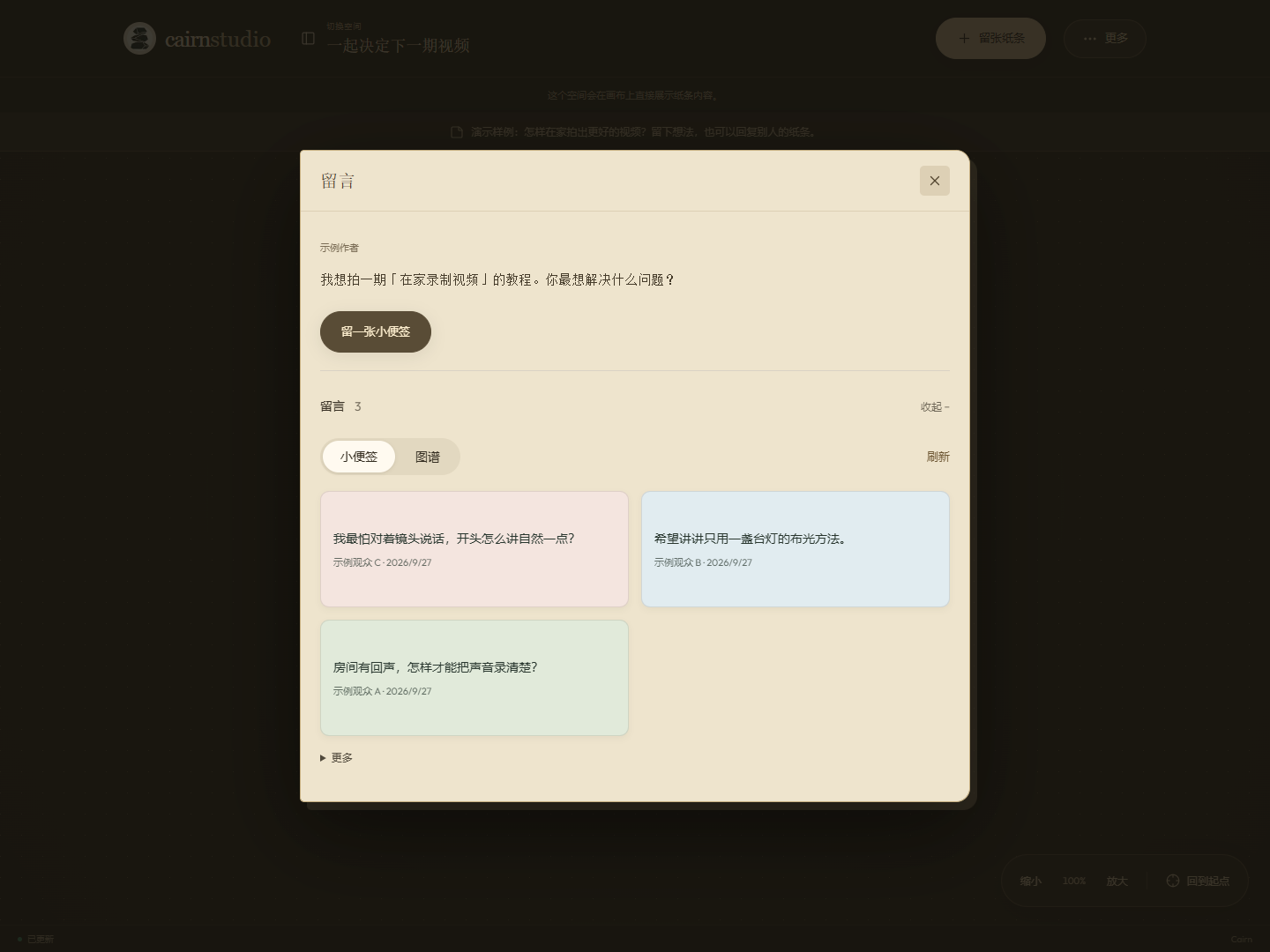
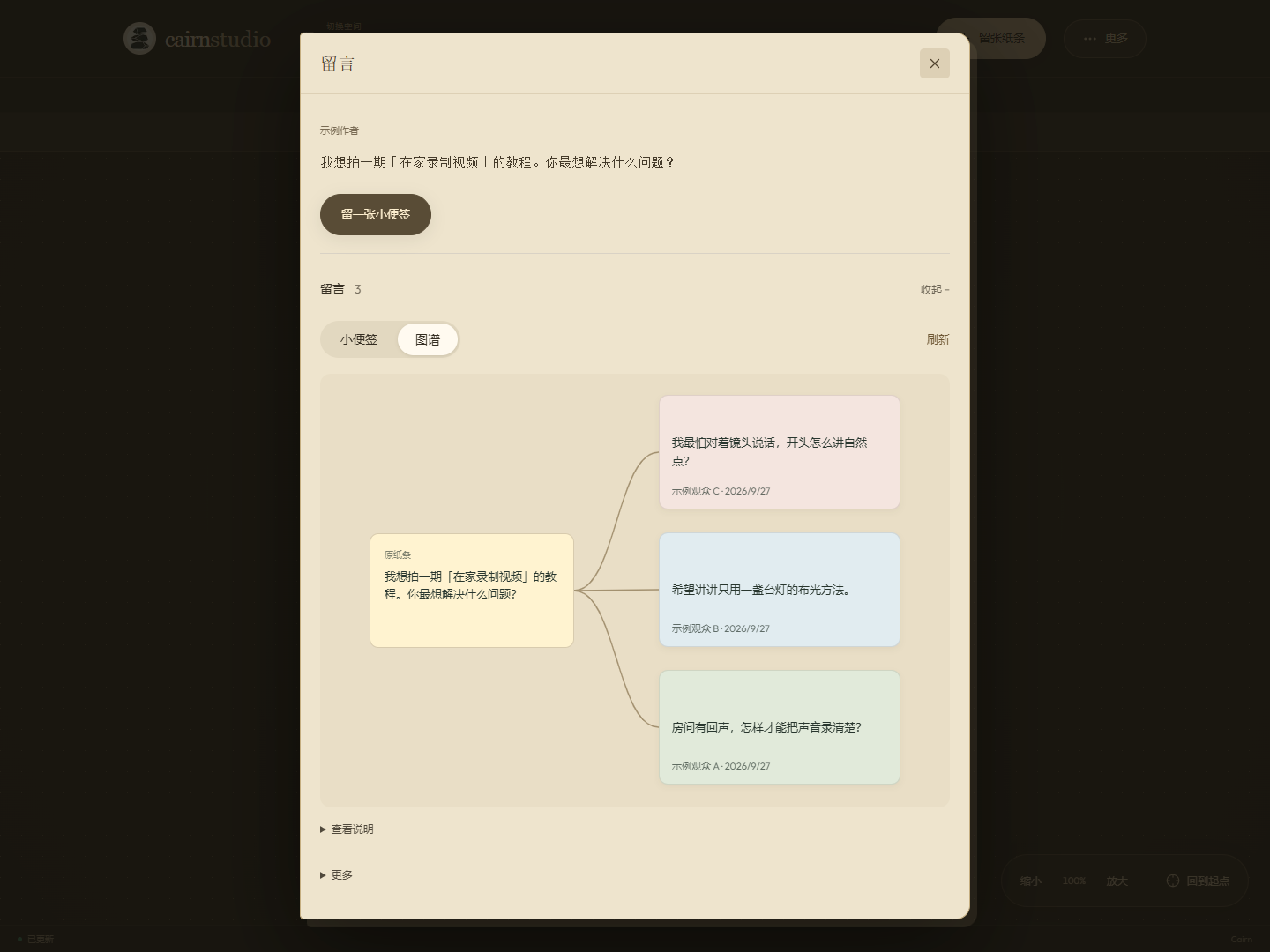
- Choose Show replies. Switch between Notes and Map to read the same discussion.
- Use Previous / Next for more replies, and open a reply to read the full text.
Good to know
Notes shows up to 12 replies per page; Map arranges up to 4 automatically and stacks them vertically on narrow screens. Replies do not need owner approval. If replies are closed, existing replies remain readable. A response to a reply stays in the original discussion.
Manage your canvas
- Open More → Space display settings to change the question or allow/close replies.
- Use members and invitations to manage private access and any shared contribution allowances.
- Use the report action on a note when content violates the rules. The platform administrator handles reports.
Good to know
The owner controls replies, but cannot approve or moderate other people’s notes. Administrators can hide or remove violating content; hiding an original note also hides its replies from public views. Older pending content remains private until a platform administrator reviews it. Closing replies does not erase history.
Plans, payments and your benefits
- Compare the current plans before paying. Check the displayed note, space and member limits and included features.
- After returning from PayPal, wait for the site to confirm your payment. An approval alone does not activate benefits.
- Open Manage subscription to see the confirmed plan, access date and current allowances. Continue on your canvas or open Help from there.
Good to know
Each original note or reply uses one note. Older pending submissions also count; hiding content does not refund quota. In a sponsored space the owner’s shared allowance may apply. Benefits follow confirmed account entitlements, including expiry and active-space limits. Cancelling renewal and requesting a refund are different; use payment support for a refund question. Never pay again simply because confirmation is delayed.
Troubleshooting and help
- If posting fails, check sign-in, access, remaining allowance and whether replies are enabled. Keep your draft and retry after a network problem.
- For a payment issue, open Help and include the order reference, approximate payment time and what you see. Never send passwords or full card details.
- Sign in and open My feedback to follow the status and responses to your request.
Good to know
Help is asynchronous written support, not an instant-response promise. If a note disappears, it or its parent may have been hidden, removed or made inaccessible. Refresh the page before reporting a display issue; include the page address, language, device and steps to reproduce.
Content rules
- We reject politically sensitive content, political incitement, extremist propaganda, and cult promotion or recruitment.
- We reject pornography, violent or terrorist content, encouragement of crime, hate, harassment, threats and personal attacks.
- We reject fraud, malicious links, spam, impersonation, privacy violations and infringement of others’ rights.
Good to know
Respect applicable laws and other participants. Violations may be hidden or removed; serious or repeated violations may result in account restrictions. Report violations through the note’s report action. These rules apply to every canvas and paid plan; an owner’s permission does not override them. Reports are reviewed by the site administrator.
Translations are provided for reading assistance and have not all been reviewed by native speakers. Report unclear wording through Help.